

You can send WooCommerce quote email directly from the Order page after finalizing the customer’s pricing in Manual Quote Mode. With WooCommerce Quotes and Orders, every quote request lands in your admin as a real WooCommerce order. Because of that, you can open it, add your pricing, and send the finished quote to the customer without leaving the Order edit screen. This guide walks through exactly how it works.
For example, a B2B supplier might price each line item differently for every customer. Manual Quote Mode is built for that. As a result, prices stay hidden on the storefront until you decide the figures and send them. Below, we explain the setup and the send step in plain terms.
How to send WooCommerce quote email
WooCommerce Quotes and Orders converts your store’s Add to Cart function into an Add to Quote function. Visitors add unlimited items to a ‘Quote’ cart and proceed through the WooCommerce Checkout to request a quote. Meanwhile, a dedicated Quotes payment gateway hides the usual payment options, so no one pays at that stage.
Crucially, each request is saved as a real WooCommerce Order with the ‘Quote’ status. Because the request is a standard order, it is fully editable. You can adjust line items, set prices, and use WooCommerce’s own tools to finish the job. This integration is what makes the email step so straightforward.
Set up Manual Quote Mode for quote emails
Before you can email a finalized quote, enable the Manual Quote store rule. In the plugin’s Settings tab, you choose how prices behave. The Manual Quote rule hides prices everywhere, including on the order email and the order details. As a result, the customer sees no figures until you supply them.
- Open the Quotes and Orders Settings tab in your WooCommerce admin.
- Turn on the Store Rule: Manual Quote option.
- Decide whether to enable guest checkout or apply the rule to specific logged-in roles.
- Save your changes so new quote requests arrive as orders with the ‘Quote’ status.
By default, the plugin auto-creates a Manual Quote Role account when a user submits a request. That role mirrors a WordPress subscriber, except the user cannot see any WooCommerce product prices. However, they can still access My Account and view the quote they submitted.
Send the finalized quote from the Order page
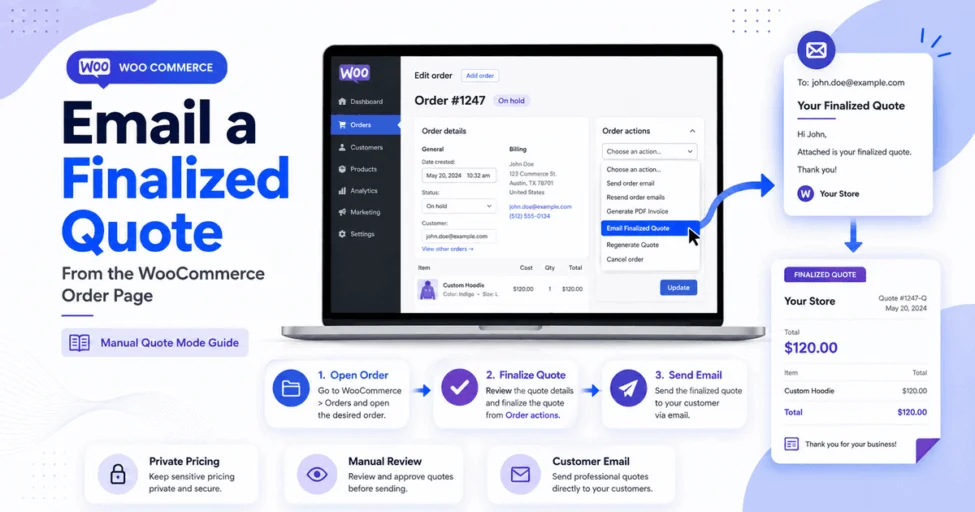
Once a request arrives, the send process happens entirely on the Order edit screen. Here is the workflow, step by step.
- Go to WooCommerce ? Orders and open the order with the ‘Quote’ status.
- Add or adjust the pricing on each line item so the totals are correct.
- Save the order so your figures are stored.
- Open the Order Actions dropdown and choose the action that sends the quote.
- Click Apply, and the customer receives the finalized quote by email.
Because the plugin uses a WooCommerce Order Action, the email is generated from the template you configured in WooCommerce Emails. Meanwhile, the customer can open the quote, review your prices, and respond. This keeps you in full control of every figure before anything is sent.
When to send WooCommerce quote email manually
Manual Quote Mode is ideal when prices vary per customer or need approval. For instance, wholesalers, fabricators, and service providers often negotiate every order. By contrast, Auto Quote Mode generates an instant, system-priced quote and lets the customer pay through your gateways right away.
In short, manual keeps you in the loop on every figure, while auto keeps customers moving. To explore both modes and every setting, see WooCommerce Quotes and Orders. For broader background on how WooCommerce emails are configured and edited, the official WooCommerce quote documentation is a useful reference: Quote for WooCommerce Documentation – WooCommerce.
Tips for sending WooCommerce customer quotes
Keep your WooCommerce email templates polished, because the finalized quote uses them directly. If you assign the Administrator role to Manual Quotes and run a test request, you will receive two emails: the site admin copy and the customer copy. That is expected behaviour, so do not worry about the duplicate.
Finally, remember that every quote is a real WooCommerce order. As a result, it integrates fully with WooCommerce My Account, and your usual order tools all apply. That consistency is what makes the whole quoting process simple to manage as your store grows.