

A well-designed WooCommerce quote to order workflow turns price negotiation into a smooth, trackable process — letting shoppers request a quote, giving you room to adjust line-item pricing, and converting an approved quote into a paid order in a single click. For B2B sellers, wholesalers, and stores with custom or made-to-order products, this workflow bridges the gap between a fixed e-commerce cart and real-world sales conversations.
In this guide you’ll learn exactly how the quote-to-order process flows from the customer’s first request to a completed order, how to manage quotes from your WordPress admin, and which settings let you tailor the experience to your business — from hiding prices to enabling mixed carts and purchase-order payments.
What the WooCommerce quote to order workflow looks like
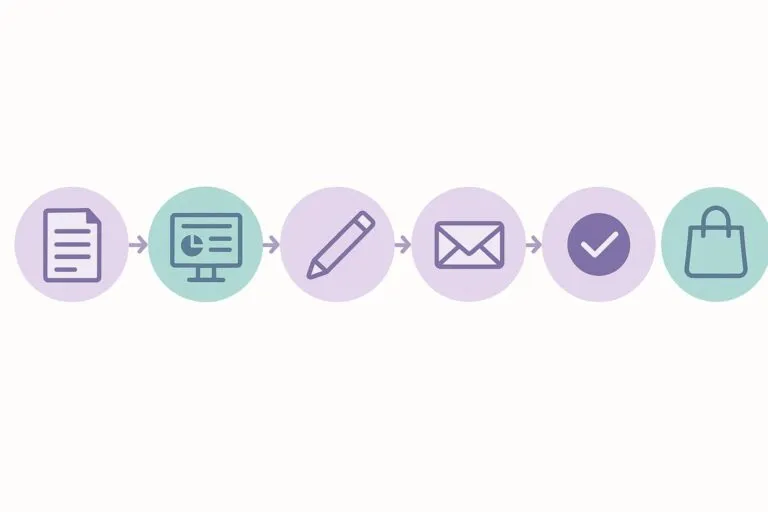
At its core, the WooCommerce quote to order workflow replaces (or sits beside) the standard “Add to Cart” button with a “Request a Quote” option. The customer assembles the products and quantities they want, submits a short request form with an optional message, and the request lands in a dedicated quotes area in your admin. From there you review, negotiate, and convert. Here is the typical journey end to end:
- A shopper clicks “Request a Quote” — often shown alongside the normal “Add to Cart” button — and submits a form capturing products, quantities, and a message.
- The request appears in a dedicated quotes management screen in the WordPress admin.
- The shop manager reviews it, edits line-item prices, adds notes, attaches files, and sets a status such as New, Under Review, Sent, Accepted, or Expired.
- The system emails the updated quote to the customer, either manually or automatically on a fixed interval.
- The customer logs into their account to view the negotiated price and either accepts or declines.
- On acceptance, a one-click conversion creates a regular WooCommerce order with the quoted prices and can redirect the customer to checkout for payment.
Step 1: Capture the quote request
The workflow starts on the product or cart page. Enabling the request-quote form typically adds a “Request a Quote” button to single product pages so customers can submit quotation requests while still being able to buy in-stock items normally. The submitted form captures the desired products, quantities, and any customer message, giving you everything you need to prepare an accurate response.
You can also control who sees the quote option. Role-based visibility lets you show quote buttons only to specific user roles or wholesale customers, while price hiding conceals prices for items that always require a quote — useful when B2B pricing depends on quantity, requirements, or delivery date.
Step 2: Review and negotiate from the admin
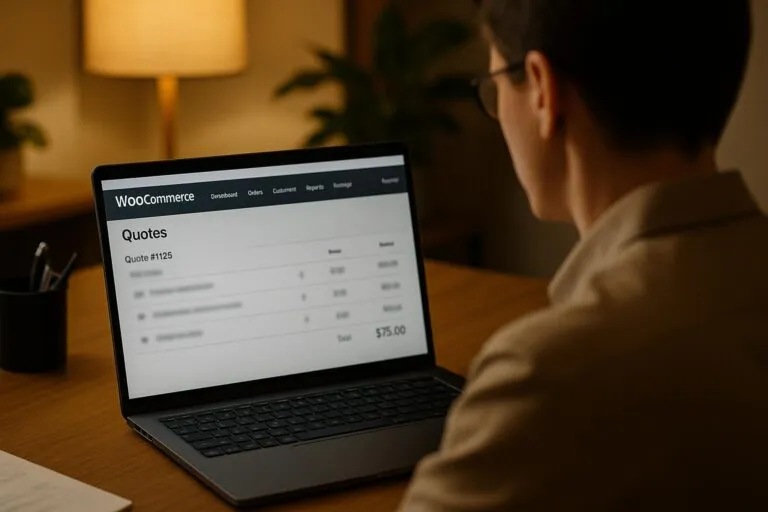
Once a request comes in, all the action happens in a centralized quotes dashboard in your WordPress admin. Each entry shows the requested products, pricing, customer information, and any special requirements. From a single screen you can add or remove products, adjust quantities, set the offered price per line item, add internal or customer-facing notes, attach supporting documents, and move the quote through your chosen statuses.
Custom statuses are one of the most useful parts of the workflow. You can create status names that match how your team actually works — for example New Quote, Under Review, Sent to Customer, and Accepted — and trigger email notifications to the customer whenever a status changes. If a customer resubmits a declined quote, you can review the full quote history and re-quote with updated quantities or products.
Step 3: Send the quote to the customer
After you’ve set the final pricing, the system emails the updated quote to the customer. You can send it manually, or configure a fixed interval — from when a request is received — so the quote email goes out automatically without manual intervention once you’ve adjusted the prices. Email templates can present the line items as a quote, or include line items plus a direct link to pay, depending on how you want customers to respond.
Step 4: Convert the quote into an order
This is where the quote becomes revenue. There are two clean paths to conversion, and a good setup supports both:
- Customer-initiated: set the quote status to Accepted, and the customer converts it into an order from their My Account page and pays at the agreed price.
- Admin-initiated: you convert the quote into an order yourself at any time, using the offered price — which becomes the product price in the new order.
Either way, the conversion preserves the agreed-upon pricing, creates a standard WooCommerce order, updates the order status, and sends notification emails. Because the result is a normal order, it flows into your existing fulfillment, reporting, and HPOS-compatible order cycle just like any other sale. If you want a deeper look at how quotes and orders relate within your store, see our guide to WooCommerce Quotes and Orders.
Configuration options that shape the experience
The flexibility of the WooCommerce quote to order workflow comes from its configuration. Beyond the basic request-and-convert flow, you can tune the system to match different selling scenarios:
- Mixed cart support — allow quote-only and purchasable products together in the same cart.
- Stock-based quoting — auto-enable quotes for out-of-stock items so customers can still express intent.
- Quantity-based quoting — automatically switch to a quote when a customer requests bulk quantities, ideal for B2B.
- Category-based quoting — include or exclude products from quoting based on their category.
- Price hiding — conceal prices and the add-to-cart button for customer groups who must request a quote.
- Payment gateways — let customers pay through standard checkout, or enable a Purchase Order gateway for B2B accounts.
For those technically minded you can checkout the Nuts and Bolts of how a preium Quotes and Orders plugin works here.
Why this workflow matters for B2B and custom products
For wholesale and B2B sellers, prices often depend on order quantity, product specifications, and delivery dates — there’s no single fixed number to display. A quote-to-order workflow lets you hide prices, force a quote request for those customer groups, negotiate privately, and then convert to a paid order once both sides agree. The same applies to personalized or made-to-order products that simply can’t carry a standard price tag.
The payoff is a single, organized system: every request is tracked, every negotiated price is preserved, and every accepted quote becomes a clean WooCommerce order. Instead of juggling emails and spreadsheets, you run the entire quotation process — from request to order — inside the store you already manage.
Getting started
To build your own WooCommerce quote to order workflow, start by enabling the request-quote form, decide which products or user roles should use quotes, and set up your custom statuses and email notifications. Test a full cycle yourself — submit a request, adjust pricing in the admin, send the quote, accept it, and confirm the order is created with the agreed price. Once that loop works smoothly, you’ll have a quoting system that scales with your B2B and custom-order sales.